
How to Create Meesho Catalog Images: Step-by-Step Guide
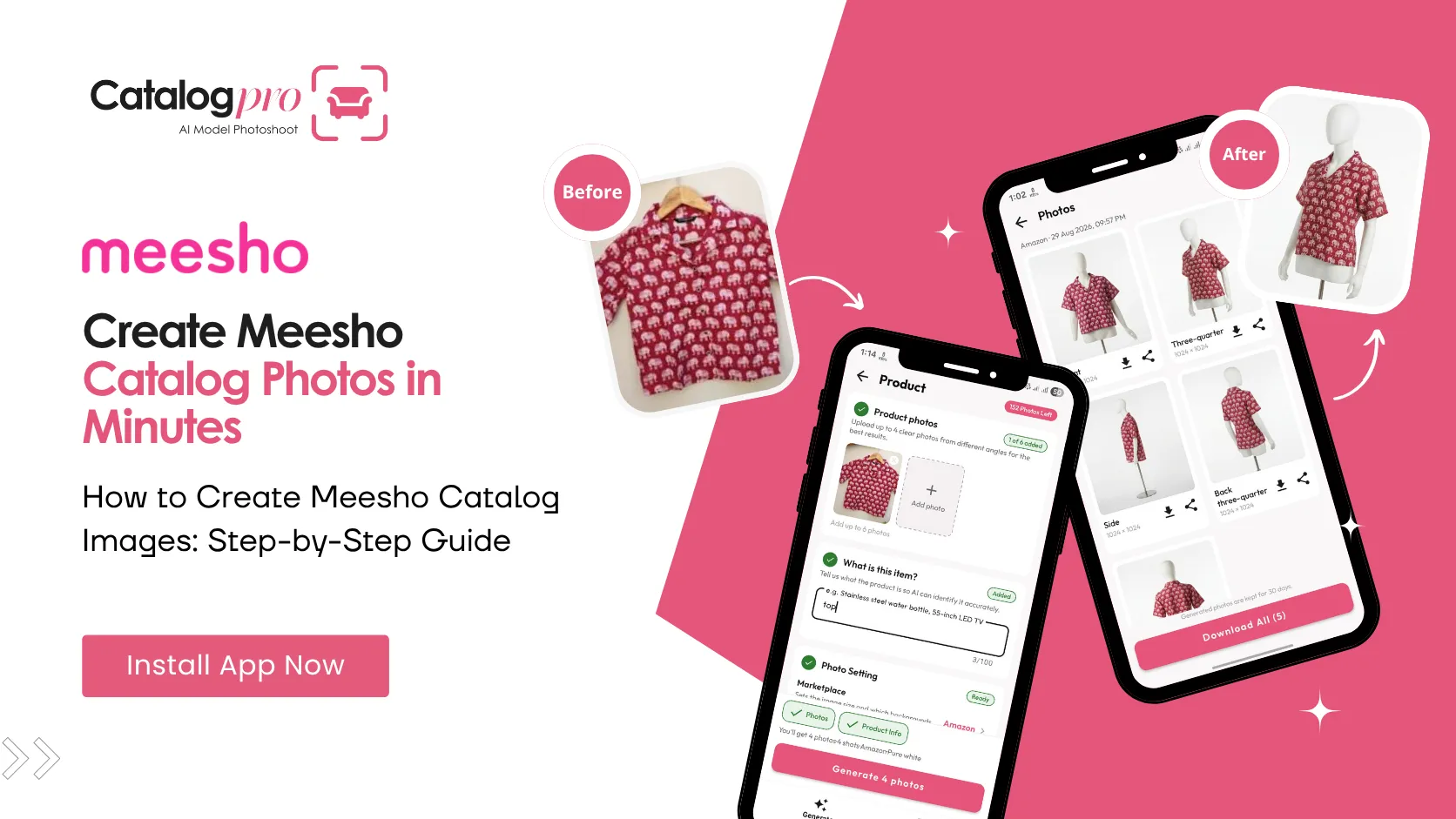
Listing products on Meesho starts with catalog images. If your images do not meet Meesho's quality expectations, your catalog gets rejected or buried under thousands of competitors. This guide walks you through the complete process — from photographing your products to uploading finished images on the Meesho Supplier Panel.
If you are looking for general Meesho product photography tips and what makes a good Meesho listing photo, read that guide first. This article focuses on the how — the step-by-step workflow for creating and uploading catalog images.
Step 1: Photograph Your Products
You do not need a professional camera or a studio. A smartphone with a decent camera is all you need. Here is how to get the best results:
Lighting
Natural daylight is the best light source. Photograph near a large window during the day — avoid direct sunlight which creates harsh shadows. If natural light is not available, use two desk lamps positioned at 45-degree angles on either side of the product.
Background
Use a plain white or light grey background. A white bedsheet, a white chart paper, or a white wall works. Meesho prefers clean backgrounds without patterns or distracting elements. For clothing, hang the garment on a plain wooden or white hanger against a clean wall.
Framing
Make sure the entire product is visible in the frame with some margin around it. Do not crop any part of the product. For clothing, capture the full length from neckline to hem. Hold the phone steady — blurry images get rejected.
Multiple Angles
Take photos from at least 3–4 angles:
- Front view (the main image)
- Back view
- Close-up of design details, print, or texture
- Side view (especially for clothing and footwear)
Step 2: Edit or Generate Your Catalog Images
Raw phone photos are rarely ready for Meesho. They need background cleanup, colour correction, and proper sizing. You have two paths:
Option A: Manual Editing
Use a free photo editor to remove the background, adjust brightness and contrast, and resize to the recommended Meesho image dimensions. This works but is time-consuming — expect 10–15 minutes per image. For fashion products, you still will not have model photos unless you hire a model.
Option B: Use Catalog Pro (Recommended)
Catalog Pro combines photography and editing into a single step. Take a phone photo of your product, select the Meesho preset, and the app generates multiple professional images — with white background, correct dimensions, and (for clothing) an AI model wearing the garment. The entire process takes under 2 minutes per product.
Meesho Image Requirements by Category
Different product categories on Meesho have different image expectations:
- Clothing (sarees, kurtis, dresses) — model photos strongly preferred. Minimum 4 images: front on model, back on model, fabric close-up, and design detail. Recommended size: 1000×1500 px (2:3 ratio).
- Footwear — product on white background. Side profile, top-down, sole detail, and worn-on-foot shot if possible. Recommended size: 1000×1000 px (1:1 ratio).
- Jewellery and accessories — white background, close-up with sharp focus. Show the product worn if possible. Recommended size: 1000×1000 px.
- Home and kitchen — white background product shot plus a lifestyle shot showing the product in use. Recommended size: 1000×1000 px.
- Electronics — white background, multiple angles, include what is in the box. Recommended size: 1000×1000 px.
Step 3: Upload to Meesho Supplier Panel
Once your images are ready, here is how to upload them to create a Meesho catalog:
- Log in to Meesho Supplier Panel — go to supplier.meesho.com and sign in with your registered credentials.
- Go to Catalog Management — click on "Add New Catalog" or "Catalog" in the left sidebar.
- Select your category — choose the product category and sub-category. This determines which attributes are required.
- Upload images — drag and drop your images or click to browse. Upload the main image first, then additional angles. Meesho accepts JPEG and PNG formats.
- Fill in product details — add the product name, description, price, MRP, size options, colour, fabric type, and other attributes. Complete every field — incomplete listings get lower visibility.
- Submit for review — Meesho reviews every new catalog before it goes live. This typically takes 24–48 hours. If images do not meet quality standards, the catalog is sent back for revision.
Common Meesho Catalog Upload Errors and How to Fix Them
Many sellers face rejections or errors during the catalog upload process. Here are the most common ones:
- "Image quality too low" — your image resolution is below Meesho's minimum. Re-shoot at a higher resolution or ensure your phone camera is set to the highest quality setting. Aim for at least 1000 pixels on the shortest side.
- "Watermark detected" — Meesho does not allow watermarks, logos, or text overlays on product images. Remove all text and branding from the image.
- "Background not clean" — the background has visible clutter, shadows, or colour inconsistencies. Use a background removal tool or re-shoot against a cleaner surface.
- "Image does not match category" — the image does not clearly show the product listed. Make sure the product in the image matches the category and description you selected.
- "Duplicate catalog" — Meesho detected that these images or product details closely match an existing catalog (yours or another seller's). Use original images — do not copy images from other listings or manufacturer websites.
How Many Images Per Meesho Product?
Meesho allows up to 4–8 images per product depending on the category. The general recommendation:
- Minimum: 3 images — front view, back view, and one detail/lifestyle shot.
- Recommended: 4–5 images — front, back, side, detail close-up, and either a lifestyle shot or a size reference shot.
- Fashion (clothing): 4+ images — front on model, back on model, fabric close-up, and design detail. The more images you upload, the more confidence buyers have.
Listings with 4+ images consistently outperform those with 2–3 images in click-through rate and conversion on Meesho.
The Fastest Way to Create Meesho Catalogs
The traditional workflow — photograph, edit, resize, upload — takes 15–30 minutes per product. Multiply that by 50 products and you are looking at a full day of tedious image work before you even start listing.
Catalog Pro compresses this entire workflow into under 2 minutes per product. Take a phone photo, pick a preset, and the app handles background removal, sizing, lighting correction, and (for clothing) AI model generation. Export directly in Meesho's recommended dimensions and upload to the Supplier Panel.
Whether you are listing your first 10 products or managing a catalog of 500+, the process stays the same — fast, consistent, and professional.
Ready to Try It?
Download Catalog Pro and create professional Meesho catalog images in under 2 minutes — no editing skills needed.
Download Catalog Pro — Free to StartMore Tips for Sellers
Meesho Product Photography: Complete Guide for New Sellers
From clothing to furniture — how to create professional Meesho catalog photos.
Meesho Image Size Guide: Product Photo Dimensions and Requirements
Recommended dimensions, file formats, and photo requirements for Meesho listings.
Meesho Clothing Photos: How to Create Professional Fashion Catalog Images
A complete guide to creating Meesho clothing photos that attract buyers.