
IndiaMART Product Photos and Image Size for Suppliers
IndiaMART asks for medium-size images around 500×500 pixels, no larger than 4MB, with the product covering 60-70% of the image on a white background. Photograph the exact model you supply, and keep real detail views for buyers who check specifications.
See current photo-pack prices. Use your own product photos as references.
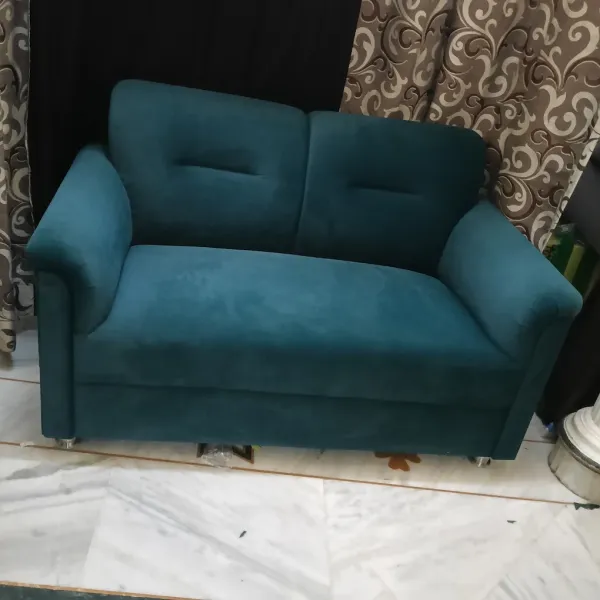
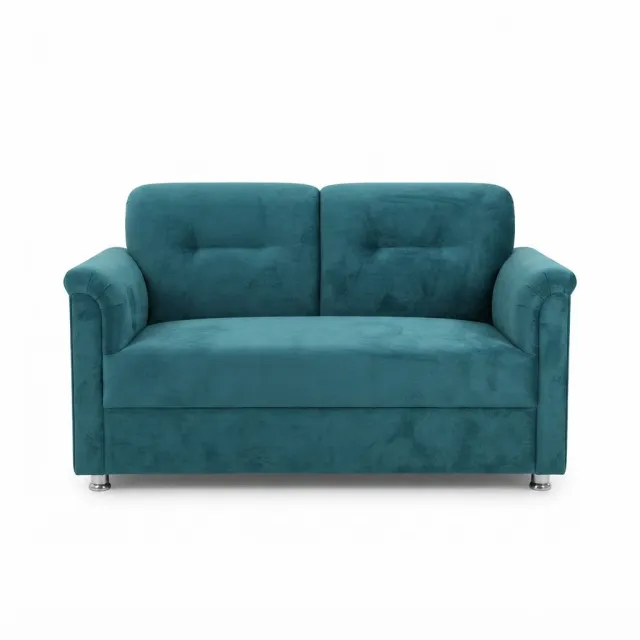
IndiaMART product image size
IndiaMART's help page on guidelines for product images says:
- Use medium-size images in the range of 500×500 pixels. The add product images help page describes this as a square format.
- The maximum file size is 4MB.
- The product must cover at least 60-70% of the image area, on a white background.
- No text on the image: no watermark, logo, price, offer or timestamp.
- No drawings or illustrations of the product, and no extra objects mixing different products.
- Each image in your catalog should be unique; photos from different angles count as separate images.
IndiaMART says it may remove images that do not meet these standards. Check the help page and your seller panel before uploading, in case the rules have changed. To upload, open Products in your seller panel, choose Add Product, and use Add Photo.
Photograph the exact model you supply
For a supplier listing, identify the model, material, dimensions and available variants alongside the image. Photograph the actual ports, fittings or construction. A similar-looking stock image can create enquiries for the wrong specification.
- The image matches the actual product.
- Colour, labels and included parts are correct.
- Real photos show important details.
- The export matches the size and background above.
Separate product details from order terms
Keep minimum order quantity, pack size and pricing terms in the listing text, not on the image, since IndiaMART asks for images without prices or offers. If a photo shows a group of items, explain whether it is a range or a bundle. Do not let an AI image imply a certification, test result or included accessory.
Use AI images carefully
A clean white background made with AI product photography may help a phone photo meet the background rule, but IndiaMART does not accept drawings or illustrations, so the result must still look like a photo of your real product. Compare generated text, labels and shapes with the source before publishing, and keep real detail views for specification checks.
Try one product first
- Take a clear front photo of one product and close-ups of its labels and fittings.
- Open Catalog Pro on the web or the Android app and choose clothing on a model or product photos.
- Pick the model, pose and background options you need, then generate.
- Compare every result with the real item: colour, print, stitching, logos and parts. Download only the ones that match.